
Broken Touchscreen / Display
Last updated: October 1, 2026

If your device has a broken display or touchscreen, OrangeFox may still be able to help you recover your data.
HW GUI (Broken touchscreen)
What is HW GUI Control?
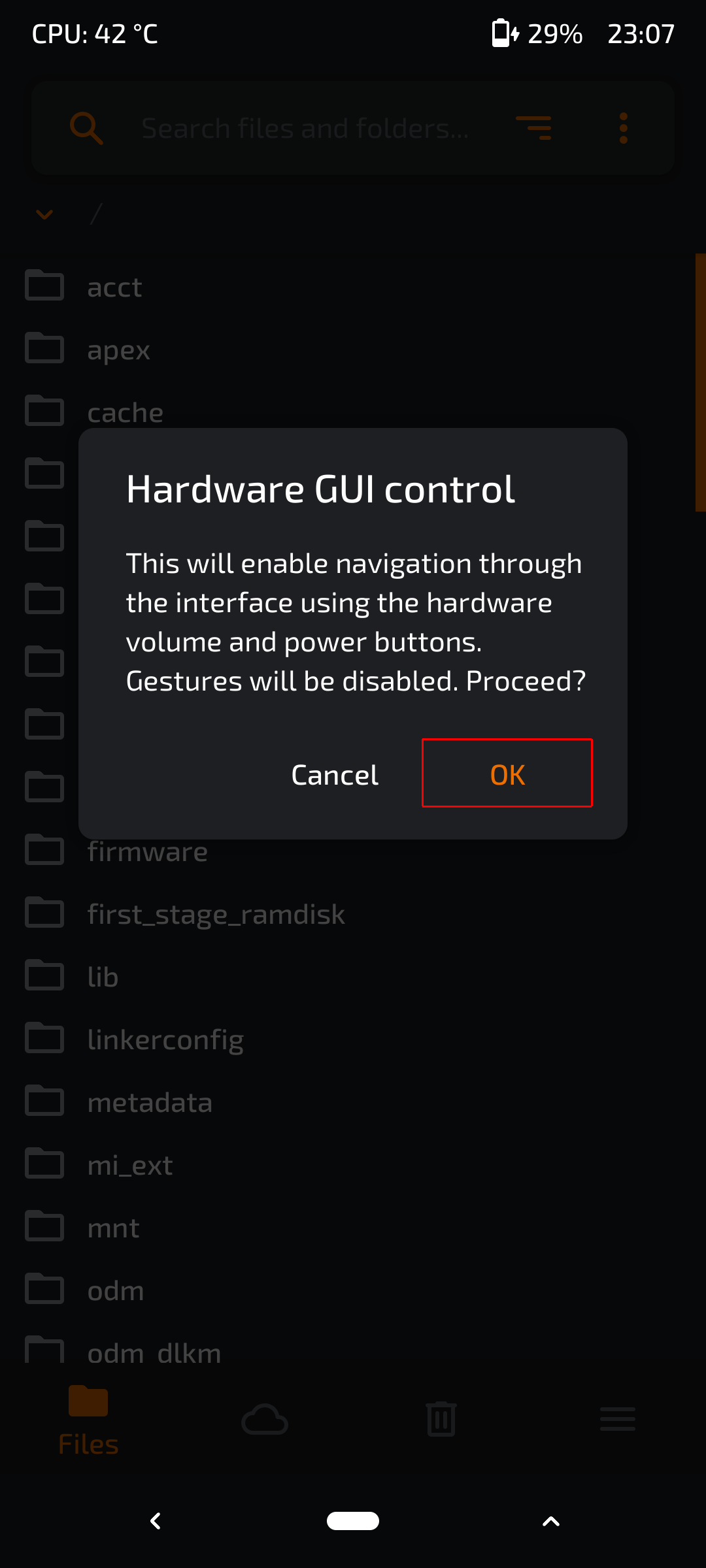
Starting with version R11.3, OrangeFox Recovery introduces support for controlling the user interface using hardware buttons, such as the volume buttons (+ and -) and the power button. This control mode is called HW GUI Control.
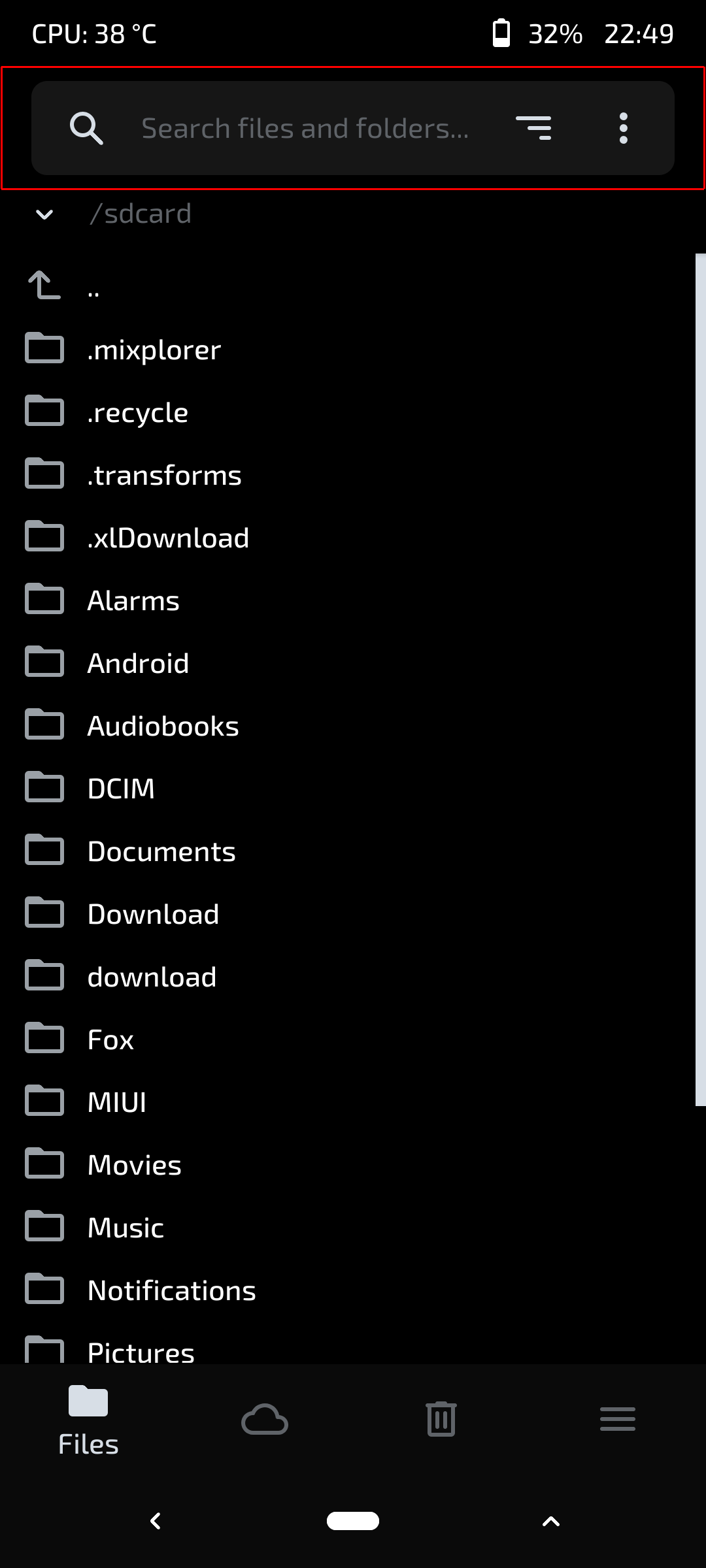
HW GUI Control is an auxiliary feature designed to enable users to navigate OrangeFox Recovery in cases where the touchscreen is malfunctioning (ie, it is an emergency measure).
This mode is not intended for everyday use. It is specifically meant to help with emergency situations involving touchscreen problems.
Please be aware that this feature is under development, that there may be visual glitches, and that you may sometimes need to press a button more than once.
Controls in HW GUI Control Mode:
- Navigate through interface elements.
- Move the slider bar.
- Simulates a press on the selected element.
- For sliders and PatternPassword: selects the object, allowing further interaction with it using the volume buttons.
- Simulates holding the selected element.
- For PatternPassword: confirms the pattern.
Switching HW GUI Control Mode:
- Automatic Activation: The mode is automatically enabled on devices with GKI 1.0/2.0 (i.e., those using the TW_LOAD_VENDOR_MODULES build variable) when none of the requested kernel modules were loaded.
- Manual Activation/Deactivation: The user can manually enable or disable the mode by simultaneously holding the volume buttons "+" and "-" for 3 seconds.
ADB Shell and the Fox Binary (Broken Display)
What is the Fox Binary
The fox binary provides various hooks for the OpenRecoveryScripts, which can be used to automate/execute various commands using the ADB shell tool.
Entering the OrangeFox Shell
First, you would need to enter the OrangeFox shell by executing the
adb shell
command on your PC.Decrypting /data
To decrypt /data while being in the OrangeFox shell, write
fox decrypt <pattern>
. Replace the <pattern>
with your password or pin code.When your unlocking method was a pattern, you would need to translate the pattern to the numeric representation using the table below:
| 1 | 2 | 3 |
| 4 | 5 | 6 |
| 7 | 8 | 9 |
For example, when your pattern is in the shape of "L", the password would be 14789, and the command to decrypt the data would be
fox decrypt 14789
.Downloading Files Using ADB Pull
Generally, "adb pull" is a more reliable way to download files from devices, especially in cases when the MTP protocol could not be initialized.
To use "adb pull", execute the command:
adb pull [options] <path on device> <where to save on pc>
.Example to download the entire Fox/ folder with all the OrangeFox data and backups:
Loading...
Once in the OrangeFox shell, you can navigate through the Android file system using standard Linux commands:
- ls- List files and directories
- cd <directory>- Change directory
- pwd- Show current directory
- cat <file>- Display file contents
- find <path> -name "<filename>"- Search for files
Creating Backups Using Fox Binary
The fox binary includes backup functionality:
Loading...
Common partitions to back up include:
- B: Boot
- S: System
- D: Data (excluding storage/Internal SD)
- C: Cache
- A: Android secure (or SD-EXT if you're using that)
- E: EFS
- M: Modem/Firmware/Radio
- O: ODM partition
- V: Vendor partition
For example, to back up System, Boot and Data:
Loading...
Flashing ROMs and ZIPs
To flash a custom ROM or ZIP file using fox binary:
Loading...
Example:
Loading...
Wiping Partitions
To wipe specific partitions:
Loading...
Common options include:
- fox wipe data- Factory reset
- fox wipe cache- Clear cache
- fox wipe dalvik- Clear Dalvik cache
Rebooting
Various reboot commands:
- fox reboot system- Normal reboot
- fox reboot recovery- Reboot to recovery
- fox reboot bootloader- Reboot to bootloader/fastboot
- fox reboot download- Reboot to download mode (Samsung devices)